Training providers
Attendance, assessment records and certificates for each client
Assign courses to client companies, import online attendance and download the course documentation from one workspace.
From attendance register to course file
Follow a videoconference course at Centro Formazione Altavia. The Akadia screenshots show how attendance, assessment results and certificates come together in the course file.
Akadia screenshots · demo data
Attendance register
27 out of 30 minutes
This is the threshold for taking the test. The register shows a learner who attended for 20 minutes and fell short, and one who attended for 29 minutes and was admitted.
Open full-size screenshot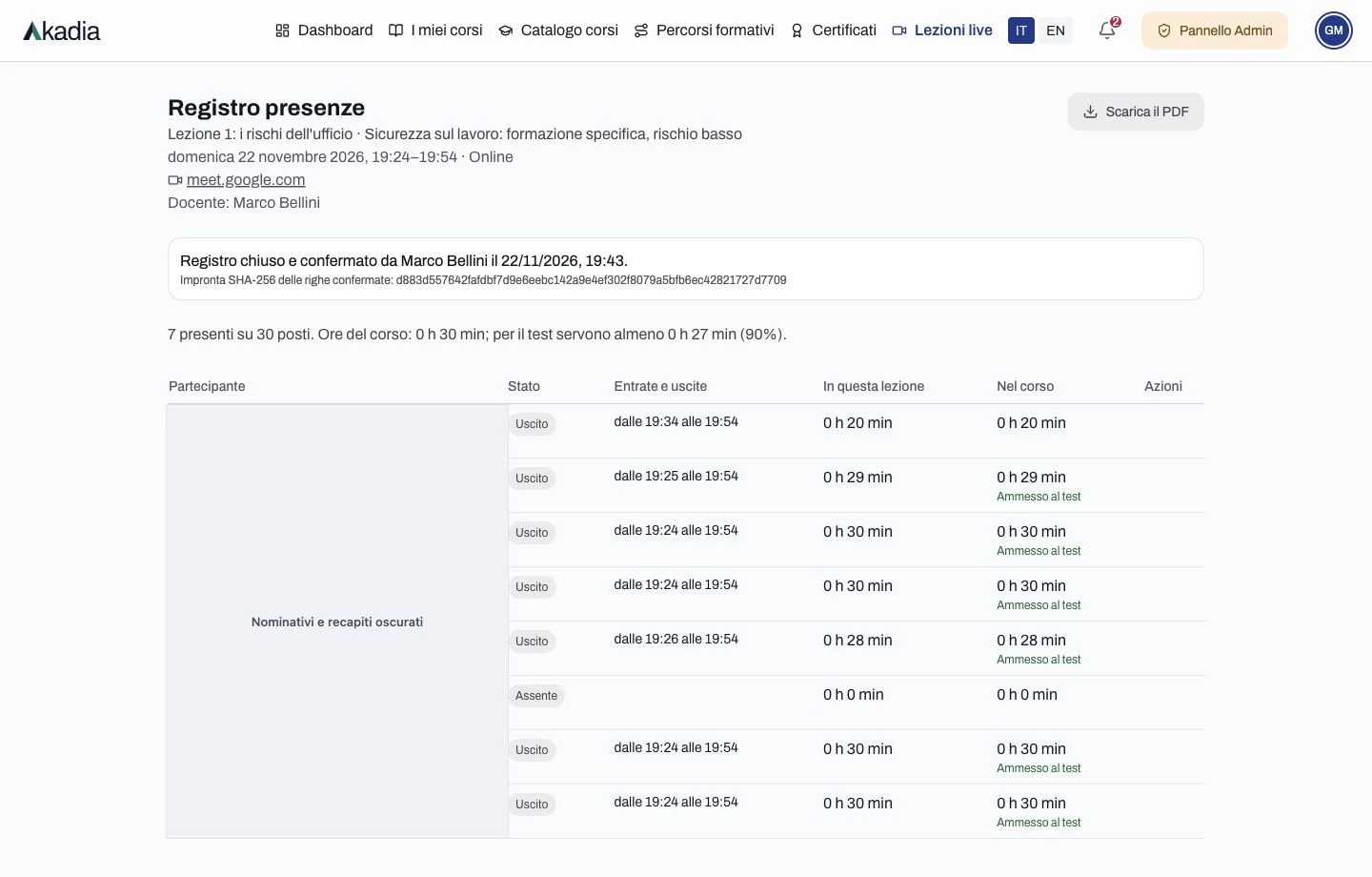
How to prepare the course file
Close the attendance register
The instructor opens the lesson register, imports the Zoom report and checks join times, leave times and minutes attended before closing it. At Altavia, learners need 27 out of 30 minutes to take the test. A learner who attended for 20 minutes falls short.
Confirm the final assessment record
In the Quiz tab, the administrator opens the final assessment record, checks the results and confirms it on behalf of the person responsible for the training programme. At Altavia, four of the five eligible learners passed.
Download the course file
From the Mandatory training tab, the administrator downloads the ZIP containing the index, participant list, syllabus and available registers, assessment records and certificates. The index flags missing documents. A certificate recipient can check its status using the link in the PDF.
Course file summary
An extract with aggregated data from the Altavia course.
Download the course file summary (PDF, Italian)Sample certificate
Download the Altavia sample and try the public certificate status check. You can also open it with the QR code in the PDF.
Plans for training providers
Both options give you an attendance register for classroom and video conference sessions. The Altavia demo course runs on Business.
Professional + Live lessons
€308 per month, billed monthly
€2,952 per year (equivalent to €246 per month)
100 users · Up to 5 client companies
The total covers the Professional plan and the Live lessons add-on.
Business
€549 per month, billed monthly
€5,388 per year (equivalent to €449 per month)
500 users · Unlimited client companies
Live lessons, video playback without skipping in Strict compliance mode, custom certificate templates and your organisation’s logo and colours.
Prices exclude VAT.
Questions from training providers
- Are video conferences and e-learning interchangeable?
- Permitted delivery methods depend on the course. Akadia provides tools to document activities. The training provider chooses the permitted delivery method and checks the requirements.
- What does public certificate verification show?
- It shows the status of the certificate issued in Akadia. Course validity depends on the requirements that apply and the training provider’s delivery of the course.
- Can I reuse my existing SCORM packages?
- You can upload SCORM 1.2 and 2004 ZIP files exported from your authoring tool to Akadia.Read the SCORM guide
How to reuse your existing SCORM courses
Choose a package that represents your courses. If you need to check scoring, start with a module that includes a test. SCORM 1.2 and 2004 chapters are available from the Professional plan.
Upload the ZIP to a SCORM chapter
In the Structure tab, add a SCORM chapter to a test course. Select the package upload option, choose the ZIP exported for an LMS with imsmanifest.xml at its root and save the chapter.
Leave the course and resume it
Publish the course and chapter in your test environment. Open the module as an enrolled learner, go to the second screen and use the module’s exit button if it has one. Reopen it with the same account and check whether it resumes at the saved point.
Check completion and score
Finish the module and take its test if it includes one. On the course progress page, check the chapter status. When the package reports progress and score, compare them with the values shown in the module.
Example with a SCORM 2004 module
In a local test with the Akadia player, a sample module resumed at the second screen. When it finished, it reported a Completed status and a score of 80/100.
If the ZIP contains several SCORM activities
Akadia opens the first activity designated by the manifest. If the course needs several standalone SCOs in sequence, export them as separate packages and add a chapter for each one.
Before migrating your library
Repeat the check for each authoring tool and SCORM version you use. Keep an export of enrolments, progress and results from your previous system. Uploading the ZIP brings the course content into Akadia.
See the workflow with an example course
In 30 minutes, see how to import attendance, close the register and download the course file.