Guides for training providers
How to manage video conference attendance
Download the meeting report and import it into the lesson register. Match each attendance entry to an enrolled learner, check how long they attended and close the register. You can then see who reaches the threshold for taking the test, where one is configured.
Open the lesson register and import the report
Download the attendance report from the video conference service. Open the lesson register in Akadia and import the report. This workflow supports compatible reports from Zoom, Google Meet and Microsoft Teams. The Altavia course uses a Zoom report.
Check attendance and time spent in the lesson
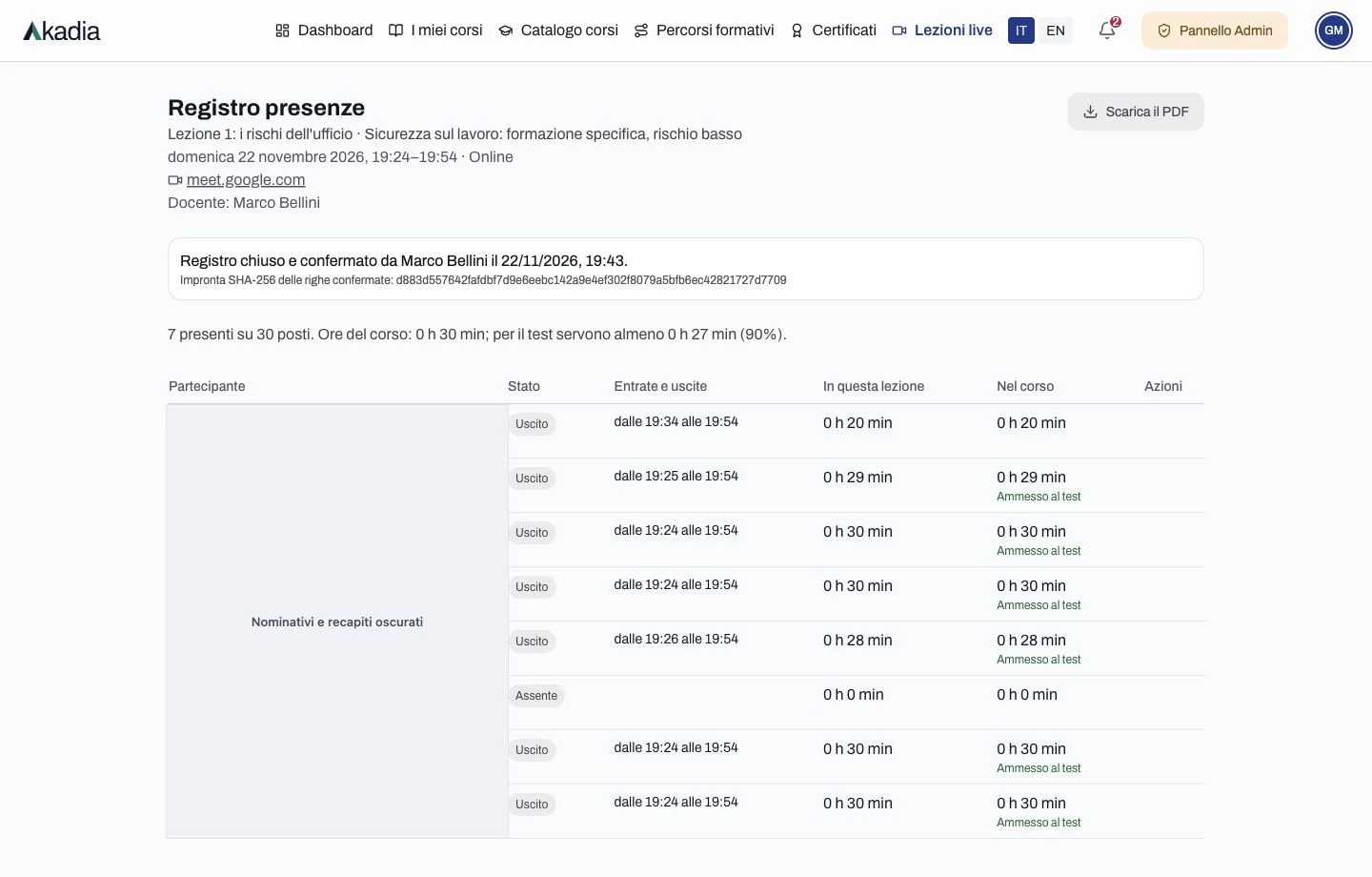
Before closing the register, check the names against the enrolments and review join times, leave times and duration. Resolve any unclear entries against the class list and the original report.
In the demo course, the threshold is 27 out of 30 minutes. A learner who attended 20 minutes falls below it. A learner who attended 29 minutes can take the test.
Close the register and find it in the course file
The instructor closes the register after checking it. Where configured, recorded attendance determines eligibility for the assessment. The administrator can view the closed register and export it with the available course documents.
Frequently asked questions
Is the attendance threshold always 90%?
In the Altavia example, 90% is the threshold set for that course. Attendance conditions depend on the course and the rules that apply to it.
Which plans include the lesson attendance register?
For training providers, the register is included in Business and is available on Professional with the Live lessons add-on. See the plan comparison for limits and prices.
See the workflow in Akadia
In 30 minutes we’ll show you how to go from an attendance report to a downloadable course file.